How to Make AI Videos for Beginners: A Step-by-Step Guide
- 12 min read
Artificial intelligence has made video creation easier for beginners, content creators, small businesses, and social media marketers. You no longer need an expensive camera, professional editing software, or advanced filmmaking skills to create engaging videos. With the right AI tools, you can turn a simple text description or an ordinary photograph into a moving video.
If you want to learn how to make AI videos for beginners, this guide will walk you through the complete process, from choosing an AI video generator to writing effective prompts, generating clips, editing your final video, and publishing it online.
Whether your goal is to create YouTube Shorts, TikTok videos, Instagram Reels, cinematic scenes, product advertisements, or educational content, you can start with a simple idea and improve your results with practice.
What Are AI Videos?
AI videos are videos created or modified with the help of artificial intelligence. These tools can generate moving scenes from text prompts, animate still photographs, add artificial narration, create digital presenters, and assist with editing.
For example, you could type a prompt describing a peaceful mountain village during sunrise. An AI video generator may turn that description into a short cinematic clip with moving clouds, sunlight, and a camera movement.
There are three common approaches to AI video creation.
Text-to-video: You describe a scene in words, and the AI generates a video based on your instructions.
Image-to-video: You upload an image and ask the AI to animate it. This is useful for turning landscape pictures, character illustrations, product photographs, and room designs into short clips.
AI-assisted video editing: You use AI to help create scripts, generate voiceovers, add captions, remove backgrounds, or improve existing footage.
The best method depends on the type of video you want to produce.
What Do You Need to Make AI Videos?
Getting started does not require a complicated setup. A smartphone or computer with a reliable internet connection is enough for many browser-based tools.
You will generally need an idea for your video, an AI video generator, a written prompt, and a video editor if you want to combine multiple clips.
For beginners, it is helpful to understand that some tools generate only short video clips, while others help assemble a more complete video with narration, music, and captions.
Before selecting a platform, check its free usage limits, export quality, watermark policy, and commercial-use terms. Free access may be limited by credits, video duration, or other restrictions.
Best AI Tools for Making Videos
Choosing the right tool can make your workflow easier. Here are some popular options to explore.
1. Runway
Runway offers AI-powered video generation and creative tools for generating and transforming visual content. It can be useful for cinematic scenes, creative experiments, and image-based video projects.
It is worth exploring if you want more control over the visual appearance of your clips.
2. Google Flow
Google Flow is a creative filmmaking tool designed around Google's generative AI technology. Depending on the available model and your access, it can help create scenes and develop visual sequences from prompts.
Check the current access requirements and generation limits before planning a project around it.
3. Pika
Pika provides AI tools for creating and transforming visual content. It is worth considering for short creative clips, stylized scenes, and experiments with animated images.
Review its current features to see which generation options are available to your account.
4. CapCut
CapCut is useful for assembling and polishing videos. Depending on the features available in your region and account, it can help with captions, transitions, effects, audio, and AI-assisted editing.
You can use an AI video generator to produce your clips and then edit them in CapCut before publishing.
No single tool is best for every project. Compare the available features and choose the option that fits your budget, video style, and intended platform.
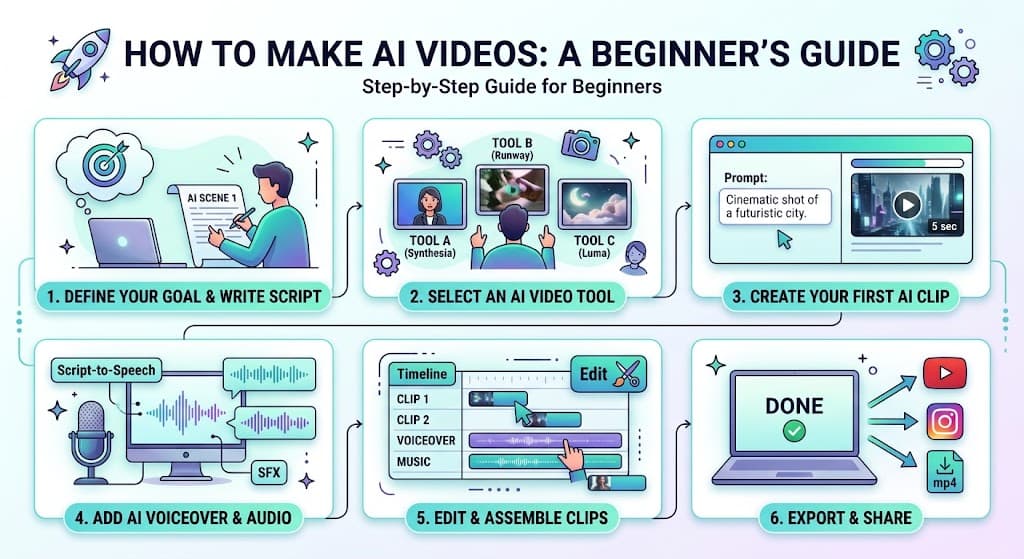
How to Make AI Videos Step by Step
You can create your first AI video by following a straightforward workflow.
Step 1: Choose a Video Idea
Start with a clear idea rather than generating random scenes. Decide what you want viewers to see and what the video should communicate.
For example, you might create a luxury bedroom makeover, a cinematic mountain landscape, a product advertisement, or a short educational video.
If you are creating content for YouTube Shorts, TikTok, or Instagram Reels, consider a vertical format. For traditional YouTube videos, a horizontal format may be more appropriate.
A clear objective helps you choose the right tool, visual style, and video length.
Step 2: Write a Detailed AI Video Prompt
A prompt is the written instruction you provide to an AI tool. It describes what should appear in the video and how the scene should look.
A weak prompt might say:
"Make a beautiful room."
A stronger prompt would be:
"A modern luxury living room with cream-colored furniture, light oak flooring, warm indirect LED lighting, large windows, and soft morning sunlight. The camera slowly moves forward, revealing realistic textures and elegant interior details. Natural lighting, cinematic composition, realistic materials, smooth motion, vertical 9:16 format."
The second prompt provides much more information about the subject, setting, lighting, camera movement, and visual style.
A useful prompt formula is:
Subject + Action + Setting + Camera Movement + Lighting + Visual Style + Aspect Ratio
You do not need to include every element in every prompt. Focus on the details that matter most to your scene.
Step 3: Select Text-to-Video or Image-to-Video
After preparing your prompt, choose the appropriate generation method.
If you want the AI to create a completely new scene, use text-to-video. If you already have a photograph, illustration, or AI-generated image, use image-to-video when the selected tool supports it.
Image-to-video can be especially useful when you want to maintain a recognizable starting composition. However, the final animation may still change small details, objects, or facial features.
For example, you can create an image of an empty room and then animate it with a prompt asking for a slow camera movement or sunlight entering through the window.
Step 4: Generate Your First Clip
Open your chosen tool, sign in if necessary, enter your prompt, and select the available generation settings.
Choose a suitable aspect ratio and duration. For vertical social media content, 9:16 is a common choice.
Generate the clip and review the result carefully. Pay attention to unnatural movement, distorted objects, inconsistent faces, flickering details, and unwanted changes between frames.
If the output does not match your idea, simplify the prompt or adjust one instruction at a time. Repeating the exact same generation may produce a different result, but it does not guarantee an improvement.
Step 5: Create Multiple Scenes
A single AI-generated clip is not always enough for a complete video. For a longer project, create several short scenes that work together.
Suppose you want to make a 30-second room renovation video. You could plan the following sequence:
- Scene 1: Show an old, neglected room.
- Scene 2: Show workers preparing the room for renovation.
- Scene 3: Show the walls, flooring, and lighting being improved.
- Scene 4: Reveal the finished luxury interior.
Write a separate prompt for each scene. If you want the same room to appear throughout the video, repeat the important details, such as wall colors, window placement, furniture style, and camera angle.
This approach can help create a more coherent story instead of a collection of unrelated clips.
Step 6: Edit Your Clips Together
Once your clips are ready, import them into a video editor such as CapCut.
Arrange the scenes in the correct order, remove unnecessary sections, and adjust the timing. Add transitions only when they support the story.
You can also include background music, natural sound effects, subtitles, and a voiceover. Keep the audio balanced so that narration remains easy to understand.
For short-form content, pay particular attention to the opening seconds. Show an interesting visual or explain the main benefit early so viewers understand why they should continue watching.
Step 7: Export and Publish Your Video
Before exporting, review the complete video from beginning to end. Check for abrupt transitions, spelling errors, inconsistent visuals, and audio problems.
Use an aspect ratio and resolution suitable for your target platform. Vertical 9:16 videos are commonly used for Shorts and Reels, while 16:9 is standard for many conventional YouTube videos.
Write a clear title and description, and use relevant keywords naturally. Avoid promising results that the video does not deliver.
If the video contains realistic AI-generated or altered content, review the disclosure requirements of the platform where you intend to publish it.
How to Make AI Videos for Free
You can begin experimenting with AI video creation without purchasing a subscription immediately. However, free access varies between platforms and can change over time.
Start by checking whether your chosen tool offers free credits, trial generations, or limited exports. Use those resources to test a small project before committing to a paid plan.
To save credits, prepare your prompts in advance. Decide what each scene should contain and avoid repeatedly generating clips without a clear goal.
You can also use free editing software or a free editing tier to combine your clips, add text, and prepare the final video.
Keep in mind that free does not always mean unrestricted. Some platforms impose watermarks, lower export quality, limited daily generations, or restrictions on commercial use. Always check the current terms if you plan to earn money from your videos.
Tips for Creating Realistic AI Videos
Realistic AI videos depend on more than a detailed prompt. The scene should contain clear actions and a consistent visual direction.
Describe movement clearly. Instead of asking for everything to move, specify one primary action, such as a person walking slowly toward a doorway or a camera gently panning across a landscape.
Avoid unnecessary complexity. Prompts containing too many simultaneous actions can produce confusing results. Start with a simple scene and add complexity gradually.
Maintain visual consistency. When generating multiple scenes, reuse the same descriptions for characters, clothing, locations, and important objects.
Pay attention to lighting. Natural light, soft shadows, and consistent color descriptions can help maintain a coherent visual style.
Inspect the final result. AI-generated clips may contain visual errors, strange movements, or inconsistent objects. Review every clip before publishing it.
Use sound thoughtfully. Suitable background music, narration, and sound effects can make a video more engaging, but they should support the visuals rather than overwhelm them.
Common Mistakes Beginners Should Avoid
One common mistake is expecting a single short prompt to produce a perfectly edited, complete video. Many generators produce individual clips that still require editing.
Another mistake is changing the visual description too much between scenes. This can make a character, room, or product look different from one shot to the next.
Beginners sometimes focus entirely on visual quality and forget storytelling. Even an attractive video may feel confusing if the scenes do not follow a logical sequence.
It is also important not to assume that every AI tool is free or that every generated result can be used commercially. Review the relevant license terms, especially when producing advertisements or client projects.
Finally, avoid publishing a video without checking it. A few minutes of reviewing and editing can help identify obvious visual, audio, and caption problems.
Can You Make Money With AI Videos?
AI-assisted video creation can support several types of creative work, including social media content, product demonstrations, educational videos, promotional clips, and visual storytelling.
For example, a small business might use AI-generated scenes to develop an initial advertisement concept. A creator might use AI-generated landscapes as part of an original short film. A freelancer could offer video editing or AI-assisted production services to clients.
However, using AI does not guarantee income, views, or monetization. Results depend on the quality of the work, audience interest, originality, marketing, and the rules of the platform.
If you plan to sell AI-generated videos, confirm that the tools and assets you use permit the intended commercial activity. Use licensed music, avoid unauthorized use of real people's likenesses, and follow applicable disclosure requirements.
Frequently Asked Questions
How do beginners make AI videos?
Beginners can start by selecting an AI video generator, writing a detailed prompt, generating a short clip, and editing the result in a video editor. Start with a simple idea and improve your prompts as you gain experience.
Can I make AI videos using my phone?
Yes. Many AI video generators and editing tools work through mobile browsers or dedicated applications. Availability and performance depend on the specific tool and device.
Can I turn a photo into an AI video?
Yes. Image-to-video tools can animate a still photograph by generating movement, camera motion, or changes within the scene. Results vary depending on the image, prompt, and model.
How long does it take to make an AI video?
A short clip may take only a few minutes to generate, but the full process can take longer when you create multiple scenes, regenerate imperfect results, add narration, and edit the final video.
Are AI-generated videos suitable for YouTube Shorts?
Yes. AI-generated clips can be edited into vertical videos for YouTube Shorts. Focus on a clear idea, engaging opening, good pacing, and original presentation rather than relying on AI visuals alone.
Final Thoughts
Learning how to make AI videos for beginners is easier when you approach the process one step at a time. Start with a clear idea, select a suitable tool, write a focused prompt, generate short clips, and combine the best results in a video editor.
You do not need to master every AI feature at once. Begin with one simple project, identify what works, and gradually improve your prompts, editing, sound, and storytelling.
With regular practice, AI video tools can become a useful part of your creative workflow for social media, personal projects, and business content.