How to Make an Image Background Transparent Online for Free
- 8 min read
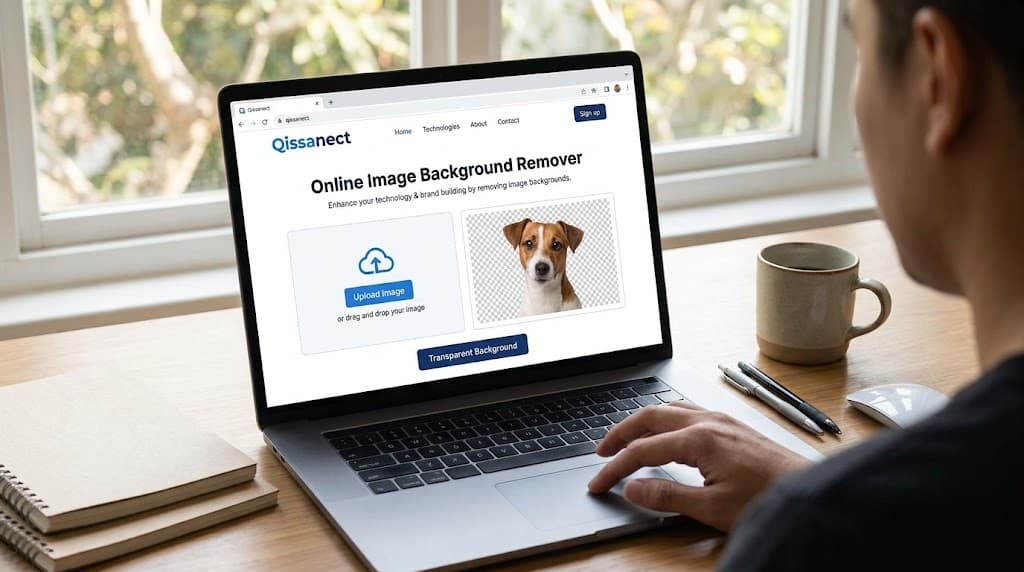
Introduction
Removing the background from an image is a useful way to create clean, professional-looking visuals for websites, social media posts, product listings, presentations, and graphic designs. A transparent background allows you to place an image over different colors, patterns, and designs without showing an unwanted solid background.
If you want to make an image background transparent online, you can follow a simple process without needing advanced graphic design skills. The key is to prepare a suitable image, remove the unwanted background, review the result, and save the final file in a format that supports transparency.
At Qissanect.com, our focus is on helping users explore AI tools and practical digital solutions. This guide explains how transparent images work, how to prepare them, and how to get better results when removing image backgrounds.
What Does a Transparent Image Background Mean?
A transparent image background is an area of an image through which the content behind it remains visible. Instead of displaying a solid white, black, or colored background, the image contains transparent pixels.
For example, imagine a product photograph showing a pair of shoes against a white wall. If you remove the background, the shoes can be placed on a colorful promotional banner, a website page, or a different background image without the original wall appearing.
Transparent backgrounds are especially useful for:
- Product images for online stores.
- Logos and brand graphics.
- Profile pictures and portraits.
- YouTube thumbnails and social media designs.
- Website icons and illustrations.
- Marketing banners and promotional materials.
A transparent image can make a design more flexible because you can reuse the same subject in different layouts.
How to Make an Image Background Transparent Online
Follow these steps to prepare an image with a transparent background.
Step 1: Choose the Image You Want to Edit
Start by selecting the photograph, logo, product image, or graphic you want to edit. Images with a clearly visible subject are generally easier to process.
For better results, choose an image with good lighting, sufficient resolution, and a visible distinction between the subject and its background.
For example, a product photographed against a plain background may be easier to process than a photograph containing several overlapping objects.
Step 2: Open an Image Background Removal Tool
Visit Qissanect.com to explore the AI tools and digital resources available on the website.
If a suitable background removal feature is available, open it and follow the instructions to upload your image. Otherwise, use this guide to understand the process before selecting a compatible image editing solution.
Depending on the tool, you may be able to upload an image from your computer or mobile device.
Step 3: Upload Your Image
Select the image you want to process and wait for it to load.
Some background removal tools use artificial intelligence to identify the main subject and separate it from the surrounding background. This can simplify the editing process, particularly for product photographs and portraits.
Check that the correct image has been uploaded before continuing.
Step 4: Remove the Background
Select the background removal option if it is available. The tool may automatically identify the subject and remove the surrounding areas.
After processing, inspect the image carefully. Pay particular attention to hair, clothing edges, transparent objects, fine details, and small spaces between objects.
Automatic processing can sometimes remove parts of the subject or leave unwanted background fragments. If manual editing is available, use its erase or restore controls to correct these areas.
Step 5: Review the Transparent Areas
A checkerboard pattern in an image editor often indicates transparency. It does not normally form part of the exported image.
Inspect the edges of the subject at a higher zoom level. Make sure the important details remain visible and that the background has been removed where intended.
For product images, check that the product's shape, labels, and fine edges remain intact.
Step 6: Download the Transparent Image
When the image looks correct, export or download it in a format that supports transparency.
PNG is a common choice for transparent graphics. WebP also supports transparency and may be useful for website images.
JPEG does not support transparent pixels, so saving a transparent image as JPEG usually replaces the transparency with a solid background.
After downloading the image, open it in an editor or place it over a colored background to confirm that transparency has been preserved.
Benefits of Making Image Backgrounds Transparent
Create Professional Product Images
Transparent product images can be placed on different backgrounds, promotional banners, and product cards. This helps maintain a consistent visual style across an online store.
Improve Website Design
Transparent graphics can blend into website layouts without displaying an unwanted rectangular background. This is useful for logos, icons, illustrations, and decorative elements.
Make Social Media Content More Flexible
Creators can reuse a single cutout in different posts, thumbnails, advertisements, and promotional graphics. Changing the background becomes easier when the original background is no longer attached to the subject.
Simplify Graphic Design Projects
Transparent images can be layered with text, shapes, colors, and other visual elements. This provides more flexibility when creating presentations, posters, banners, and digital artwork.
Save Time on Repeated Editing
Once a clean transparent image has been created, it can be reused in multiple designs without repeating the entire background removal process.
Tips for Getting Better Background Removal Results
Use High-Resolution Images
A clear, high-resolution image usually provides more visible details around the subject. This can help when processing hair, fine edges, and small objects.
Choose Images with Clear Subject Boundaries
When the subject contrasts with its background, separating the two is often easier. Similar colors between the subject and background can make the edges more difficult to identify.
Check Hair and Fine Details
Hair, fur, plant leaves, and delicate objects may require extra attention. Zoom in before exporting to look for missing details or leftover background pixels.
Avoid Unnecessary Cropping
Keep enough space around the subject while processing the image. Cropping too tightly may cut off important parts of the object or make the final composition less flexible.
Export in the Correct Format
Use PNG when you need a widely supported transparent image. Consider WebP when you need transparency for web use and your workflow supports it.
Always verify the exported file rather than relying only on the preview.
Common Problems When Removing Image Backgrounds
The Background Is Still Visible
Small background fragments may remain around the edges of the subject. Review the image at higher magnification and use available refinement controls.
Parts of the Subject Disappear
Automatic selection may confuse the subject with the background, especially when their colors are similar. Try a clearer source image or restore the missing areas using manual editing controls.
The Downloaded Image Has a White Background
This may happen when the image is exported in a format that does not support transparency or when the editor fills transparent areas with white.
Export the image as PNG or another supported transparent format and check the export settings.
The Image Looks Jagged Around the Edges
Low-resolution images or aggressive background removal can create rough outlines. Try a sharper source image and refine the edges before downloading.
The File Is Too Large
High-resolution transparent images may have large file sizes. If the image is intended for a website, consider resizing it to the dimensions actually required and optimizing the file while preserving transparency.
How Qissanect.com Can Help with Your AI Tools Journey
Qissanect.com is focused on AI tools and practical digital workflows. Learning about image editing, image generation, and background removal can help users choose suitable solutions for their creative projects.
When exploring the website, look for tools and tutorials relevant to your needs. Depending on the features available, these resources may help you understand image processing, create digital visuals, and improve your content creation workflow.
For the best results, start with a clear image, choose an appropriate editing method, and verify the final file before using it in your project.
Frequently Asked Questions
How can I make an image background transparent online for free?
You can use an online image background removal tool that offers free access. Upload your image, process the background, review the result, and download it in a format that supports transparency. Free access and download limits depend on the tool.
Which file format supports transparent backgrounds?
PNG and WebP support transparency. PNG is commonly used for logos, product cutouts, and graphics. JPEG does not preserve transparency.
Can I make a white image background transparent?
Yes. A background removal tool may be able to identify a white background and separate it from the main subject. Results depend on whether the subject also contains white areas.
Can I make a transparent background on my phone?
Yes. Many online image editing tools work in mobile browsers. You can upload an image, process it, review the result, and download the exported file if the tool supports your device.
Why does my transparent image look white after downloading?
The file may have been exported as JPEG, or the editor may have filled transparent areas with white. Try exporting as PNG and testing the file over a colored background.
Does removing an image background reduce image quality?
It can, depending on the source image, processing method, and export settings. Use a high-quality original and inspect the exported image for edge artifacts or lost details.
Can I use transparent images for commercial purposes?
That depends on your rights to the original image and the terms of the editing tool. Make sure you have permission to use the image and comply with any applicable licensing conditions.
Conclusion
Making an image background transparent online is a practical way to prepare images for websites, ecommerce, social media, and graphic design. By selecting a clear image, removing the unwanted background, checking the edges, and exporting in a transparency-compatible format, you can create versatile graphics for many different projects.
Visit Qissanect.com to explore AI tools and helpful digital resources for your creative workflow. Start with a simple image, review the result carefully, and save the finished graphic in the format that best suits your needs.