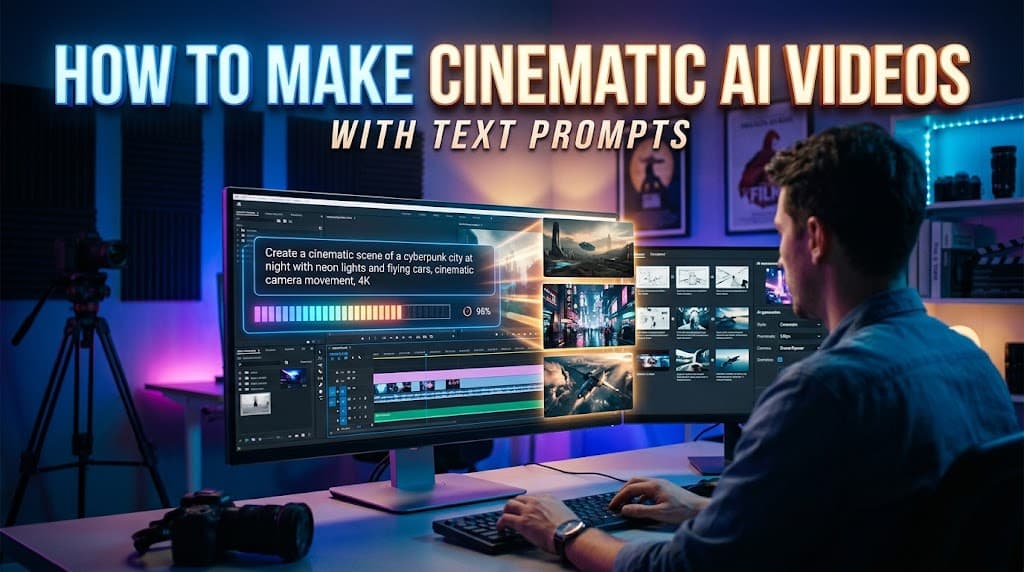
How to Make Cinematic AI Videos with Text Prompts
- 16 min read
Introduction
Artificial intelligence has made video creation easier than ever. You no longer need an expensive camera, a professional studio, or advanced filmmaking skills to create visually impressive videos. With the right AI video generator and a well-written text prompt, you can turn simple ideas into cinematic scenes.
Whether you want to create YouTube Shorts, travel videos, fantasy landscapes, product advertisements, or short films, AI video tools can help bring your ideas to life. The key is learning how to describe your scene clearly and guide the AI with details about camera movement, lighting, atmosphere, and visual style.
In this guide, you will learn how to make cinematic AI videos with text prompts, write better prompts, choose suitable tools, and avoid common mistakes. You will also find ready-to-use examples that you can customize for your next video project.
What Are Cinematic AI Videos?
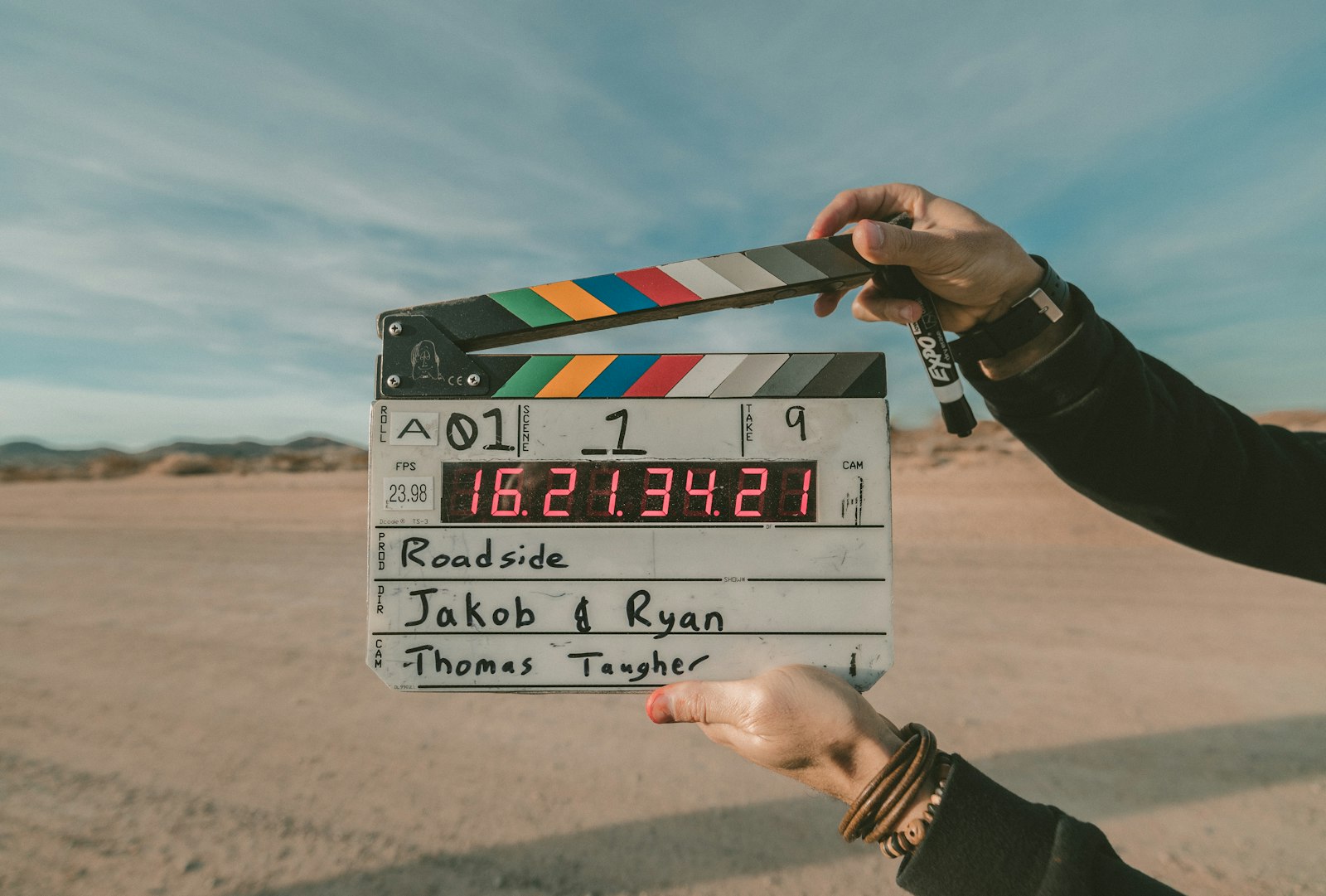
Professional cinema camera setup for capturing and styling cinematic AI video footage.
Cinematic AI videos are videos generated or enhanced with artificial intelligence to create a film-like visual experience. These videos often feature dramatic lighting, smooth camera movements, carefully composed scenes, realistic environments, and a strong atmosphere.
Instead of recording every scene with a physical camera, you describe what you want to see using text. An AI video generator interprets your description and creates a short video clip.
For example, you could enter a prompt describing a peaceful village surrounded by green mountains, morning fog drifting over a river, and warm sunlight illuminating traditional wooden houses. The AI tool may turn that description into a moving scene.
Cinematic AI videos can be used for:
- YouTube Shorts and social media content
- Travel and nature videos
- Short films and storytelling
- Product advertisements
- Music visuals and background footage
- Educational and explainer videos
- Fantasy and science-fiction scenes
The final quality depends on your prompt, the capabilities of the AI model, and any editing you perform afterward.
How to Make Cinematic AI Videos with Text Prompts
Creating a cinematic AI video does not have to be complicated. Follow these steps to turn your idea into a polished video.
Step 1: Choose a Clear Video Concept
Start with one specific idea instead of trying to describe an entire movie in a single prompt.
Think about the subject, location, action, mood, and purpose of your video.
For example, your idea might be:
A small wooden boat moving slowly across a misty lake at sunrise.
This concept is simple, visual, and easy to expand into a cinematic prompt.
Before generating your video, decide whether you want a realistic scene, an animated environment, a fantasy sequence, or a commercial-style video.
Step 2: Select an AI Video Generator
Choose a tool that supports your preferred workflow. Some tools generate videos directly from text, while others animate uploaded images or provide additional editing features.
Popular options to explore include:
- OpenAI Sora: For generating video scenes from creative descriptions, where available.
- Runway: For AI-assisted video generation and creative video workflows.
- Google Veo: For text-guided video generation and cinematic scene creation, where available.
- Kling AI: For text-to-video and image-to-video workflows, depending on current access.
- Pika: For creative AI video effects and scene generation.
Features, pricing, output length, watermark policies, and availability can change. Check each provider's current plan before choosing a tool.
If you are a beginner, start with one tool rather than switching between several platforms. This makes it easier to understand which prompt changes improve your results.
Step 3: Write a Detailed Cinematic Prompt
The text prompt is one of the most important parts of AI video creation. A vague description may produce unpredictable results, while a clear prompt gives the model more useful visual information.
A strong cinematic prompt typically includes:
- Subject: The main person, object, animal, or environment.
- Action: What happens during the clip.
- Setting: Where the scene takes place.
- Camera movement: How the virtual camera moves.
- Lighting: The type and direction of light.
- Visual style: Realistic, animated, documentary, or another aesthetic.
- Atmosphere: The emotional feeling of the scene.
- Composition: The position of the subject and the framing.
For example, instead of writing:
"Create a video of a forest."
Use a more descriptive prompt:
"A dense green forest at sunrise, soft golden sunlight filtering through tall trees, thin mist drifting between the trunks, tiny leaves moving gently in the breeze, slow cinematic forward camera movement, realistic natural textures, atmospheric lighting, peaceful mood, wide establishing shot."
The second prompt explains what the viewer should see and how the scene should feel.
Step 4: Add Camera Movements
Camera movement can make an AI-generated scene feel more like a professionally filmed shot.
Here are some useful camera directions to experiment with:
Slow push-in: The camera gradually moves toward the subject. This works well for emotional moments, product shots, and revealing details.
Pull-back shot: The camera moves away from the subject, gradually revealing the surrounding environment.
Tracking shot: The camera follows a moving person, vehicle, animal, or other subject.
Pan shot: The camera rotates horizontally to reveal a wider scene.
Tilt shot: The camera moves vertically to reveal height, such as a tall building or mountain.
Aerial establishing shot: A wide view from above that introduces a landscape, city, or large environment.
Use one main camera movement per short clip. Too many conflicting instructions can make the output unpredictable.
Step 5: Describe the Lighting and Atmosphere
Lighting helps establish the mood of a cinematic video. It can make an ordinary scene feel dramatic, mysterious, warm, or peaceful.
Try including descriptions such as:
- Golden-hour sunlight for warm and inviting scenes
- Soft diffused light for gentle, natural visuals
- Volumetric light rays for atmospheric forests and interiors
- Blue-hour lighting for cool, moody city scenes
- Dramatic side lighting for portraits and suspenseful scenes
- Neon reflections for futuristic environments
- Soft studio lighting for product advertisements
For example, a prompt that describes a rainy city street with neon reflections, soft fog, and cool blue lighting will suggest a different mood from a sunny street illuminated by warm afternoon light.
Choose lighting that supports the story instead of adding random visual effects.
Step 6: Choose the Right Aspect Ratio
Your aspect ratio should match the platform where you plan to publish your video.
- 9:16 vertical: Ideal for YouTube Shorts, TikTok, and Instagram Reels.
- 16:9 horizontal: Suitable for YouTube videos, presentations, and traditional cinematic compositions.
- 1:1 square: Useful for certain social media posts and promotional content.
If you are creating vertical videos, mention that the composition should be designed for a vertical frame. Keep the main subject clearly visible and avoid placing important details too close to the edges.
Not every AI generator follows aspect-ratio instructions in text alone. Use the actual aspect-ratio setting in the tool when available.
Step 7: Generate, Review, and Improve the Clip
Your first result may not match your idea perfectly. This is normal.
Review the generated clip and look for issues such as distorted hands, inconsistent faces, unnatural movement, flickering objects, or changes in the environment.
Instead of rewriting everything, identify the main problem and adjust the relevant part of your prompt.
For example:
- If the camera moves too quickly, request slow, steady movement.
- If the scene looks artificial, emphasize realistic textures and natural motion.
- If the subject changes appearance, provide a clearer description and use reference images or character-consistency features if supported.
- If the scene is too busy, remove unnecessary background details.
Generate another version and compare the results. Small, targeted changes can be more effective than adding dozens of extra adjectives.
Step 8: Edit the Clips into a Complete Video
A single AI-generated clip can be useful, but several carefully selected clips often create a stronger story.
You can combine clips using an editor such as CapCut, DaVinci Resolve, or another suitable video editing application.
During editing, focus on:
- Cutting unnecessary frames and awkward transitions
- Matching the color and brightness between scenes
- Adding suitable background music
- Including natural sound effects, such as wind, rain, or flowing water
- Adding narration or subtitles when necessary
- Adjusting the pacing to match the music
- Exporting at a suitable resolution and frame rate
Make sure you have the necessary rights to use any music, sound effects, or other assets in your published video.
The Best Formula for Writing Cinematic AI Video Prompts
A repeatable prompt formula makes it easier to create consistent results.
Use this structure:
Main Subject + Action + Environment + Camera Movement + Lighting + Visual Style + Atmosphere + Composition
Here is an example of how the formula works.
Main subject: A vintage sports car
Action: Driving slowly along a winding coastal road
Environment: Rugged cliffs overlooking the ocean
Camera movement: Smooth tracking shot from behind
Lighting: Warm golden-hour sunlight
Visual style: Photorealistic cinematic film
Atmosphere: Calm, elegant, adventurous
Composition: Wide horizontal frame with the car clearly visible
Complete Example Prompt
"A vintage sports car driving smoothly along a winding coastal road above the ocean, rugged cliffs and crashing waves in the background, warm golden-hour sunlight reflecting on the car's polished body, smooth tracking camera following from behind, realistic tire movement, natural shadows, detailed textures, cinematic color grading, elegant and adventurous atmosphere, wide 16:9 composition, consistent vehicle design throughout the shot."
This formula can be adapted to almost any subject, including landscapes, animals, architecture, animated characters, and commercial products.
7 Ready-to-Use Cinematic AI Video Prompts
The following prompts are starting points. You can paste them into a compatible AI video generator and adjust them according to your preferred style and output settings.
Cinematic Nature Video Prompt
"A breathtaking mountain valley at sunrise, a crystal-clear river flowing between lush green hills, soft morning mist drifting above the water, sunlight illuminating the distant mountain peaks, delicate wildflowers moving in a gentle breeze, slow aerial camera movement revealing the landscape, photorealistic natural textures, cinematic lighting, peaceful atmosphere, smooth realistic motion, 16:9 widescreen composition."
Best for: Nature videos, travel content, relaxing backgrounds, and scenic YouTube videos.
Anime Countryside Video Prompt
"A beautiful Japanese countryside village beside a crystal-clear river, traditional wooden houses, a small wooden bridge, lush green mountains in the distance, wildflowers along the riverbank, soft morning mist, warm sunlight reflecting on the water, gentle leaves and flowing water, slow cinematic camera movement, richly detailed hand-painted anime aesthetic, peaceful magical atmosphere, vertical 9:16 composition."
Best for: Anime Shorts, relaxing videos, and fantasy-inspired content.
Futuristic City Video Prompt
"A futuristic megacity at night, towering glass skyscrapers illuminated by blue and violet neon lights, flying vehicles moving between buildings, reflections shimmering on wet streets, subtle atmospheric fog, slow aerial camera glide between the skyscrapers, intricate architectural details, realistic reflections, cinematic science-fiction atmosphere, smooth motion, wide establishing shot."
Best for: Science-fiction videos, futuristic storytelling, and technology-themed content.
Luxury Product Advertisement Prompt
"A premium black wristwatch displayed on a polished dark stone surface, dramatic studio lighting highlighting the metal edges and detailed watch face, subtle reflections beneath the product, a slow controlled camera push-in, shallow depth of field, elegant shadows, ultra-detailed materials, luxury commercial cinematography, clean background, sophisticated atmosphere, product remains consistent and sharply defined."
Best for: Product marketing, promotional videos, and commercial concepts.
Rainy City Cinematic Prompt
"A quiet city street at night after heavy rain, warm shop lights reflecting across wet pavement, soft rain falling beneath street lamps, distant headlights glowing through atmospheric mist, a lone person walking slowly beneath an umbrella, smooth lateral tracking shot, realistic reflections and natural movement, moody cinematic lighting, detailed urban environment, film-like composition."
Best for: Emotional storytelling, music visuals, and atmospheric Shorts.
Fantasy Castle Video Prompt
"An enormous ancient castle standing on a rocky mountain above a sea of clouds, distant waterfalls cascading down the cliffs, golden sunlight breaking through dramatic clouds, small birds circling the castle towers, a slow aerial camera approach, detailed stone architecture, atmospheric depth, realistic cloud movement, epic fantasy film aesthetic, majestic and mysterious mood, widescreen cinematic composition."
Best for: Fantasy stories, fictional worlds, and dramatic video intros.
Cinematic Ocean Video Prompt
"A peaceful tropical ocean at sunrise, gentle waves rolling toward a pristine sandy beach, warm sunlight sparkling across turquoise water, palm trees moving slightly in the breeze, distant islands surrounded by light morning haze, a smooth low-angle camera glide above the water, realistic wave motion, natural lighting, detailed reflections, relaxing cinematic travel-film style, vertical 9:16 composition."
Best for: Travel videos, relaxing content, and social media backgrounds.
How to Maintain Consistency Across Multiple AI Video Clips
One common challenge in AI filmmaking is maintaining the same character, location, or object across different clips.
For example, if you create a five-scene story about a traveler exploring a mountain village, the traveler's clothing, facial features, and surroundings may change between generations.
To reduce these inconsistencies, try the following techniques.
Create a Reference Description
Write a short description of your main character or object before generating any clips.
For example:
"A young traveler wearing a dark green hiking jacket, a beige backpack, black hiking trousers, and brown boots."
Reuse the same description whenever that character appears.
Use Reference Images When Available
Some AI tools support image-to-video generation, character references, or visual reference inputs. These features can help preserve the appearance of a character, product, or environment.
Start with a reference image that clearly shows the important details.
Generate One Scene at a Time
Rather than asking for a complete multi-scene film in one prompt, create separate clips with one main action per scene.
For a short travel film, you could generate:
- A wide establishing shot of the mountain village.
- A tracking shot following the traveler along a path.
- A close-up of the traveler looking at the scenery.
- A wide sunset shot showing the village and mountains.
You can then arrange the clips in an editor. Consistency features can help, but they do not guarantee identical results.
Common Mistakes to Avoid When Creating AI Videos
Even a powerful AI video generator can produce weak results when the instructions are unclear or contradictory.
Writing prompts that are too vague: Descriptions such as "beautiful cinematic scene" do not explain the subject, action, or environment. Include concrete visual details.
Adding too many actions: Asking a character to run, jump, turn, wave, and pick up an object within a short clip may produce unnatural movement. Focus on one primary action.
Ignoring camera direction: If you do not describe the camera, the result may have an unexpected angle or movement. Add a clear camera instruction when framing matters.
Mixing incompatible visual styles: Combining photorealism, cartoon animation, watercolor painting, and documentary footage in one scene can create an inconsistent look. Choose a main style.
Using unnecessarily long prompts: More words do not always mean better results. Prioritize the details that most affect the final scene.
Skipping post-production: AI-generated clips may contain small visual errors or inconsistent pacing. Review and edit the footage before publishing it.
Ignoring platform requirements: Choose the right aspect ratio, resolution, length, and audio settings for your intended platform.
Tips for Getting More Realistic Cinematic Results
If you want your AI videos to look more professional, pay attention to the details that influence how a real camera would capture a scene.
Use Specific Descriptions
Replace generic words with observable details. Instead of "a beautiful house," describe "a modern glass house surrounded by pine trees, with warm interior lights reflecting across the windows."
Keep Motion Natural
Use phrases such as "slow, steady camera movement," "gentle wind moving the leaves," or "natural walking motion" when appropriate.
Give the Scene a Clear Focal Point
Decide what viewers should notice first. A clear main subject helps the video feel more intentional and reduces visual clutter.
Use Depth and Composition
Foreground elements, background scenery, and atmospheric perspective can make a scene feel more dimensional. For example, a tree branch in the foreground can frame a distant mountain landscape.
Match the Prompt to the Tool
Different AI models respond differently to prompt wording. Experiment with the features available in your chosen generator, including camera controls, reference images, motion settings, and aspect-ratio options.
Build a Repeatable Workflow
Save your successful prompts, note which settings produced good results, and reuse those techniques for future videos. This is especially useful if you publish content regularly.
Frequently Asked Questions
Can I make cinematic AI videos for free?
Yes, some AI video generators offer free access, trial credits, or limited-generation plans. The available features and restrictions vary by provider and can change over time. Check current pricing, export limits, and watermark policies before starting a project.
What is the best prompt for cinematic AI videos?
The best prompt clearly describes the subject, action, setting, camera movement, lighting, visual style, and atmosphere. The ideal wording depends on the scene and the AI model you use.
Do I need filmmaking experience to create AI videos?
No. Beginners can create impressive videos by starting with simple scenes and learning a few basic concepts, such as camera movement, lighting, composition, and visual continuity.
How long should an AI video prompt be?
There is no universal ideal length. A concise prompt with specific visual details is often a good starting point. Add more information only when it helps clarify the intended result.
Can I use AI-generated videos on YouTube?
You can publish AI-generated videos on YouTube, but you should follow YouTube's current monetization, copyright, and synthetic-content disclosure policies. Realistic altered or synthetic content may require disclosure in applicable cases. Monetization depends on the channel and content meeting the platform's requirements.
Can I create vertical AI videos for YouTube Shorts?
Yes. Many AI video tools support vertical output or offer settings that can be used to create vertical clips. Choose a 9:16 aspect ratio when available and keep important subjects within the visible frame.
Why do AI-generated videos sometimes look unrealistic?
Common reasons include unclear prompts, complicated movements, inconsistent objects, distorted anatomy, and limitations in the video model. Simplifying the action, improving the prompt, using reference images, and editing the final clip can help.
Is text-to-video better than image-to-video?
Neither approach is always better. Text-to-video is useful for creating a scene from an idea, while image-to-video is useful when you already have a visual reference and want to animate it. The best choice depends on your project and the features supported by the tool.
Conclusion
Learning how to make cinematic AI videos with text prompts starts with understanding how to describe a scene clearly. A strong prompt combines a specific subject, a simple action, a detailed environment, suitable camera movement, and lighting that supports the intended mood.
Start with a short, manageable scene. Generate a few versions, review the motion and composition, and improve the prompt one detail at a time. Once you are comfortable with individual clips, combine them with music, sound effects, and editing to create complete videos for YouTube, TikTok, or other platforms.
You do not need to master every AI video tool at once. Focus on writing better prompts, experimenting with visual styles, and building a repeatable workflow. With practice, you can turn simple text descriptions into engaging cinematic videos that communicate your ideas more effectively.