How to Turn Images into Videos with AI: A Beginner’s Guide
- 11 min read
Introduction
Have you ever wanted to turn a simple photograph into a beautiful, moving video? With artificial intelligence (AI), you can now animate pictures, create cinematic scenes, and produce engaging videos without advanced editing skills.
AI image-to-video tools use your uploaded image and written instructions to generate movement. For example, you can transform a landscape photo into a cinematic scene with moving clouds, flowing water, and a slow camera movement. You can also animate product images, illustrations, portraits, and AI-generated artwork.
Whether you are a content creator, blogger, digital marketer, or beginner, learning how to turn images into videos with AI can help you create more engaging visual content.
In this guide, you will learn how image-to-video AI works, which tools you can explore, how to create your first video, and how to write better prompts.
What Is AI Image-to-Video Generation?
Still photography transforming into fluid digital motion through AI image-to-video diffusion.
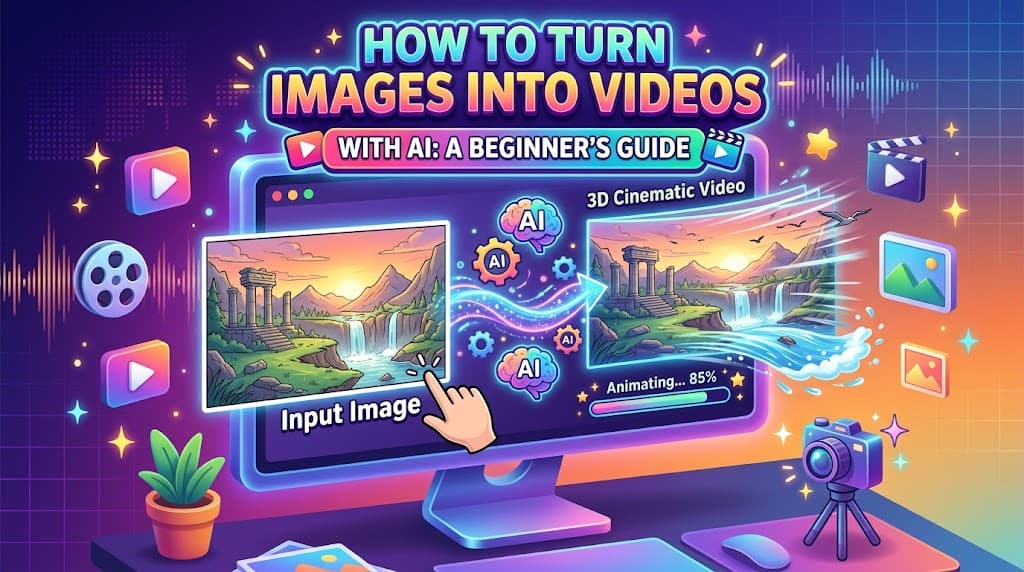
AI image-to-video generation is a technology that transforms a still image into a moving video clip. Instead of filming a scene yourself, you upload an image and describe the movement you want to see.
The AI model analyzes the image and generates new frames to create the appearance of motion. Depending on the tool, you may also be able to control camera movement, lighting, animation style, and video duration.
For example, a picture of a mountain village can become a short animated scene with drifting clouds, flowing river water, and trees moving gently in the wind.
Image-to-video AI is useful for:
- Creating YouTube Shorts and social media videos.
- Animating AI-generated images.
- Producing product demonstration clips.
- Turning travel photographs into cinematic scenes.
- Creating animated storytelling videos.
- Developing promotional content for websites and online stores.
The results depend on the source image, the AI model, and the instructions you provide.
Best AI Tools to Turn Images into Videos
Several platforms offer image-to-video features. Their available models, pricing, limits, and export options can change, so check each tool before starting a project.
Runway
Runway offers image-to-video workflows that let users upload a still image and describe the motion they want. You can guide the camera movement and scene action through prompts.
It is worth exploring for cinematic visuals, creative projects, and AI-assisted video production.
Website: https://runway.com/
Canva
Canva offers an Image to Video feature that animates existing images. Users can select automatic motion or describe a custom movement when the option is available.
After generating a clip, you can add text, music, sound effects, and other design elements within Canva.
It can be a convenient choice for social media content and simple promotional videos.
Website: https://www.canva.com/ai-image-to-video/
Google Flow
Google Flow supports video creation using images, prompts, reference materials, and start or end frames, depending on the selected model and available features.
It can be useful when you want to create a scene with more specific visual direction or maintain references across multiple shots.
Website: https://labs.google/fx/tools/flow
Adobe Photoshop on the Web
Adobe Photoshop on the web includes an Image to Video feature for turning a still image into a short AI-generated clip. The workflow includes options for prompts, duration, aspect ratio, resolution, and other settings depending on availability.
It may suit creators who already use Adobe tools for image editing.
Website: https://photoshop.adobe.com/
CapCut
CapCut provides AI video creation and image-to-video workflows, along with editing features for captions, transitions, music, and pacing.
It can be useful when you want to generate a video draft and finish it in a social-media-friendly editing workflow.
Website: https://www.capcut.com/
How to Turn Images into Videos with AI Step by Step
You do not need professional video equipment to get started. Follow these steps to create your first AI-generated video.
Step 1: Choose a High-Quality Image
Start with a clear image that has a recognizable subject. You can use a photograph, an illustration, a product image, or artwork generated with an AI image generator.
For better results, choose an image with:
- A clear main subject.
- Good lighting and visible details.
- A suitable composition for your target platform.
- Enough background space for the intended movement.
For example, if you want to create a cinematic countryside video, choose an image showing a river, trees, mountains, and a village. These elements give the AI a clear visual starting point.
Step 2: Select an AI Image-to-Video Tool
Open one of the tools listed above and find its image-to-video feature.
Depending on the platform, you may need to create an account, select a model, or use available generation credits.
Upload your image and confirm that it appears correctly in the preview. Check whether the tool supports your image dimensions and desired output format.
Step 3: Write a Motion Prompt
A prompt tells the AI how the scene should move. The most useful prompts focus on the changes you want rather than repeating every detail already visible in the image.
For example, instead of writing “A beautiful river surrounded by green mountains,” describe the motion:
“Slow cinematic camera push toward the river, water flowing naturally, tree branches moving gently in the breeze, soft morning mist drifting through the mountains, realistic movement, smooth camera motion.”
A good prompt usually includes the desired action, camera movement, atmosphere, and visual style.
Step 4: Adjust the Video Settings
If the tool provides customization options, choose settings that match your project.
For vertical videos, a 9:16 aspect ratio is commonly used for YouTube Shorts, Instagram Reels, and TikTok. A 16:9 format is often suitable for standard YouTube videos and website content.
You may also be able to adjust duration, resolution, motion intensity, or audio settings. Choose options based on your needs and available plan.
Step 5: Generate the Video
Click the Generate button and wait for the AI to process your image.
The platform will create a short clip based on the source image and prompt. Some tools may produce different variations, allowing you to compare results.
Do not expect every generation to be perfect. If the camera movement looks unnatural or objects change shape, revise the prompt and try again.
Step 6: Review and Improve the Result
Watch the entire video before exporting it.
Pay attention to faces, hands, product details, background objects, and camera movement. AI-generated clips may sometimes contain visual distortions or inconsistent details.
If something looks incorrect, simplify the prompt, reduce the requested motion, or try another generation.
Step 7: Edit and Export Your Video
Once you have a good clip, open it in a video editor if additional editing is needed.
You can add:
- Background music and natural sound effects.
- Captions and titles.
- Transitions between clips.
- Voiceovers or narration.
- Color adjustments and visual effects.
Export the final video using the format and resolution suitable for your platform. Always check the tool's current export settings and usage terms.
5 AI Image-to-Video Prompts You Can Copy
The following prompts are designed to help beginners experiment with different types of images.
Cinematic Nature Video Prompt
“Animate this landscape image into a cinematic nature video. Clouds drift slowly across the mountains, river water flows naturally, and grass moves gently in the breeze. Use a slow forward camera movement, realistic lighting, smooth motion, and a peaceful atmosphere. Preserve the original composition.”
Anime Countryside Video Prompt
“Bring this anime countryside illustration to life. The river flows beneath the wooden bridge, flowers and grass sway gently, and soft morning mist moves through the village. Add a slow cinematic camera pan, warm sunlight, consistent hand-painted anime details, and peaceful natural movement.”
Product Advertisement Video Prompt
“Create a premium product advertisement from this image. Use a slow camera orbit around the product, soft studio lighting, realistic reflections, and subtle shadows. Keep the product's shape, colors, label, and proportions consistent. Use smooth movement and a clean luxury aesthetic.”
Fashion Photography Video Prompt
“Animate this fashion photograph with subtle, realistic movement. The subject's clothing moves gently in the breeze while the camera slowly pushes closer. Preserve the original outfit, facial features, colors, and background. Use elegant lighting and a polished editorial style.”
Travel Photography Video Prompt
“Transform this travel photograph into a cinematic video. Add gentle movement to the surrounding trees, subtle changes in sunlight, and natural atmospheric motion. Use a smooth camera pan that reveals more of the scenery while preserving the original location and visual details.”
Prompt tip: Start with one or two simple movements. Asking for too many simultaneous actions may make the result less consistent.
Tips for Creating Better AI Videos from Images
Use Clear and Detailed Images
A sharp image with a recognizable subject gives the AI a stronger starting point. Blurry photographs, cluttered backgrounds, or poorly lit subjects can make animation more difficult.
Describe Motion Clearly
Tell the AI what should move and how. For example, specify that the camera should slowly zoom in while clouds drift in the background.
Avoid contradictory instructions, such as asking for a completely static camera and a fast rotating camera in the same shot.
Keep Important Details Consistent
When animating products, characters, or people, mention which details must remain unchanged. This is especially important for logos, clothing, faces, and product packaging.
However, prompts cannot guarantee perfect consistency in every generated frame.
Match the Aspect Ratio to Your Platform
Use vertical framing for short-form mobile content and horizontal framing for traditional widescreen videos. Check how the original image will be cropped before generating.
Experiment with Different Prompts
Small changes can produce noticeably different results. Try a slow camera push, a gentle pan, or subtle environmental motion instead of requesting a complicated sequence immediately.
Check Usage Rights
Use images you own, have permission to use, or are licensed to use. If you intend to publish or monetize the video, review the relevant platform's commercial-use terms and any restrictions that apply to generated content.
Common Mistakes to Avoid
Writing overly complicated prompts: Too many actions can confuse the intended scene. Start simple and build gradually.
Using low-quality images: Poor source material can lead to blurry details and inconsistent motion.
Ignoring visual distortions: Always review the final clip rather than assuming the AI has generated a perfect result.
Expecting every tool to be free: Some platforms offer limited free access, while others require paid plans or credits for particular features.
Forgetting audio and editing: A generated clip may not include music or sound effects. Add them separately when needed.
Ignoring platform requirements: Check the target platform's video dimensions, length, sound, and content requirements before publishing.
Frequently Asked Questions
Can I turn an image into a video using AI for free?
Yes, some platforms offer free access, trials, or limited AI credits. Availability and restrictions vary, so check the current terms of tools such as Canva and CapCut before choosing a workflow.
Can I turn a photo into a video without editing skills?
Yes. Many image-to-video tools use a simple process: upload an image, describe the movement, generate a clip, and export it. You can add advanced editing later if needed.
Which images work best for AI video generation?
High-quality photographs and illustrations with a clear subject generally provide a good starting point. The best image depends on the movement you want to create.
Can I use AI-generated videos on YouTube Shorts?
Yes, you can create vertical clips for YouTube Shorts. Make sure the video meets YouTube's current format and monetization policies, and provide any required synthetic-content disclosure where applicable.
Can AI add movement to anime images?
Yes. AI image-to-video tools can animate anime illustrations by adding movement to water, clouds, hair, trees, and camera angles. Results vary, so use clear prompts and review the output.
How long does it take to create an AI video from an image?
Generation time varies by tool, model, queue, and settings. A short clip may be generated within minutes, but more complex workflows or repeated attempts can take longer.
Do I need a powerful computer to use image-to-video AI?
Many browser-based tools handle generation in the cloud, so you may not need a powerful computer. You still need a compatible device, a reliable internet connection, and access to the selected service.
Conclusion
Learning how to turn images into videos with AI is a practical way to create engaging visual content without recording every scene yourself. By choosing a clear image, writing a focused motion prompt, selecting appropriate settings, and reviewing the generated clip, you can produce videos for social media, websites, product promotions, and creative storytelling.
Start with a simple image and a single movement. Experiment with different prompts, refine your results, and use editing tools to add the final touches.
As AI video technology continues to develop, image-to-video creation offers beginners and experienced creators more ways to turn static visuals into compelling stories.