How to Use Images for Video: A Complete Guide for Beginners
- 14 min read
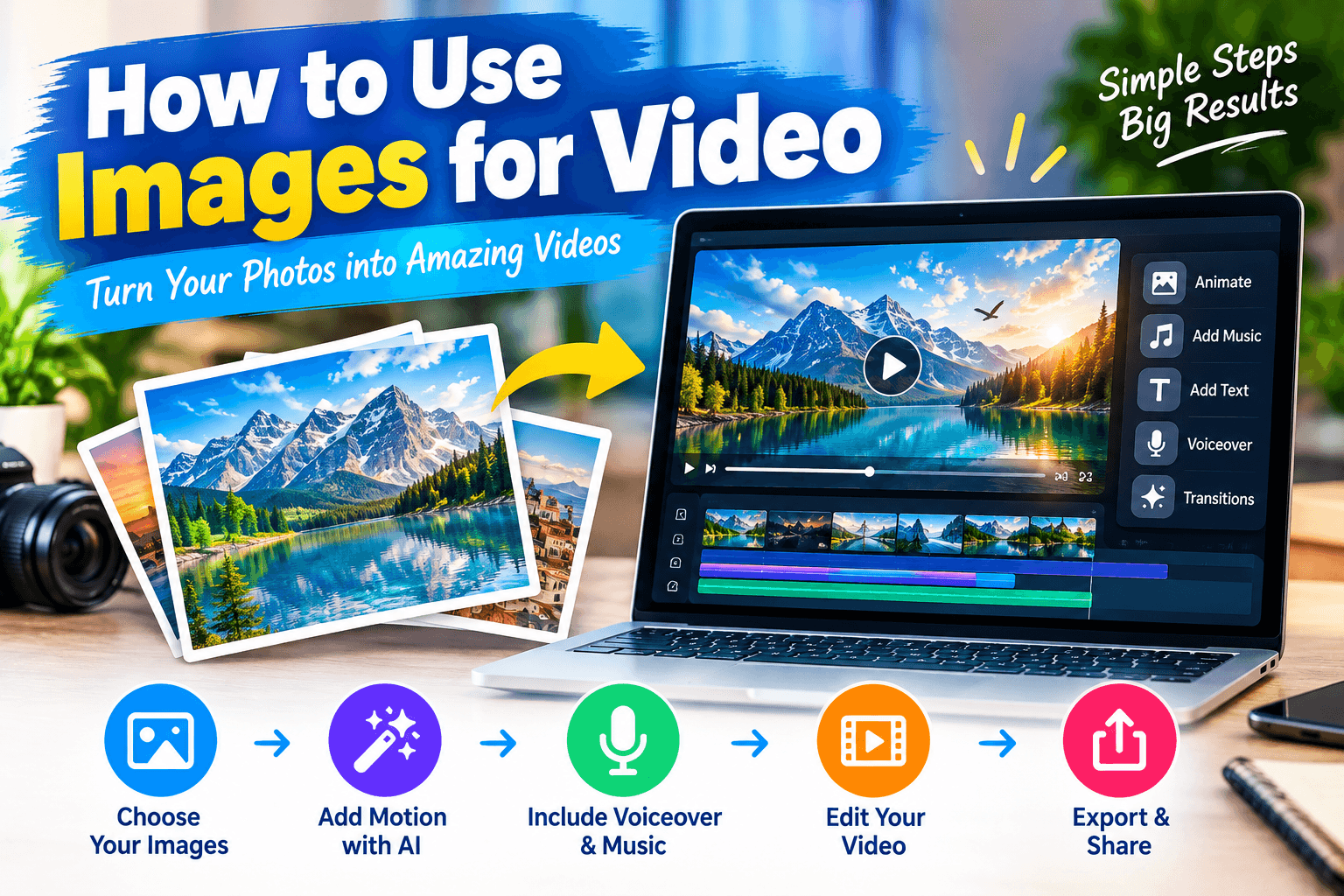
Images can do much more than display a moment. With the right tools, you can turn ordinary photos, digital artwork, product pictures, and AI generated images into engaging videos. You can add movement, create cinematic scenes, tell stories, and produce content for YouTube, TikTok, Instagram Reels, and business websites.
Learning how to use images for video is especially helpful if you do not have a camera or want to create content without recording yourself. You can start with a single picture and gradually build a complete video with motion, music, narration, and transitions.
AI technology has made this process easier. Many modern tools can animate a still image, move a camera through a scene, or use a picture as the first frame of a generated video. Traditional editing software also lets you turn a collection of images into a slideshow or a more detailed visual story.
In this guide, you will learn how to prepare images, choose the right tools, create motion, add sound, and produce a finished video step by step.
What Does It Mean to Use Images for Video?
Using images for video means turning still pictures into moving visual content. This can be done through traditional editing, animation, AI image to video generation, or a combination of these methods.
For example, imagine you have a picture of a beautiful mountain landscape. You could add a slow zoom, animate the clouds with an AI tool, include birds flying across the sky, and add relaxing background music. The result would be a short video made from an original still image.
There are several common ways to create videos from images.
Image slideshow: Arrange multiple pictures in sequence and add transitions, text, and music.
Image animation: Apply movement to a still image using zooms, pans, or animated elements.
AI image to video: Upload a picture to an AI generator and describe the movement you want to see.
Photo storytelling: Combine several images with narration to explain a story, event, product, or topic.
Cinematic image sequences: Use consistent images and AI generated motion to create scenes that resemble a film.
The best method depends on your goal, available tools, and the amount of movement you want in the final video.
Why Use Images to Create Videos?
Creating videos from images offers several advantages for beginners, content creators, and businesses.
First, you can produce content without filming every scene yourself. This is useful for fantasy stories, educational videos, historical explainers, and subjects that are difficult or expensive to record.
Second, images give you greater control over the appearance of your content. You can select the colors, characters, backgrounds, and visual style before creating motion.
Third, you can reuse your own photographs and artwork in different formats. A product photo, for example, can become a promotional clip, a social media advertisement, or part of a longer tutorial.
Image based videos are also useful when you want to explain something visually. A series of pictures can show a process, compare products, or illustrate steps in a lesson.
However, a moving image does not automatically make a video interesting. A clear message, suitable pacing, good sound, and useful editing are still important.
Best Tools to Turn Images Into Videos
Several tools can help you create videos from still images. Some generate new motion with AI, while others focus on editing and animation.
Tool | Best use |
|---|---|
Runway | AI generated video and image animation |
Kling AI | Image to video generation and cinematic motion |
Google Veo, where available | AI video generation workflows |
Adobe Firefly | Creative image and video generation features |
CapCut | Editing, transitions, captions, and social videos |
Canva | Image based videos, presentations, and simple animations |
DaVinci Resolve | Detailed video editing and finishing |
Features, free credits, supported formats, and prices may change. Check each provider's current plans and licensing terms before starting a project.
If you are a beginner, choose one tool instead of trying every platform at once. An AI generator is useful when you want a still image to come alive. An editor such as CapCut or DaVinci Resolve is useful for arranging clips, adding sound, and completing the video.
You can also combine an AI generator with an editing application for greater control over the final result.
Step 1: Choose the Right Images
The quality of your source images can affect the final video. Start by selecting pictures that match your subject and intended style.
For example, if you want to create a travel video, use clear landscape images with interesting details. For a product advertisement, select images that show the product clearly. For a fantasy story, use images with consistent characters and a suitable environment.
Before uploading an image, check the following points:
- The main subject is easy to identify.
- The picture has enough detail for your intended output.
- The subject is not cropped in an awkward way.
- The lighting and colors suit the video.
- The image has a suitable aspect ratio for the target platform.
- You have permission to use the image.
High resolution images are often helpful, but the largest file is not always the best choice. Some AI tools resize uploaded images automatically or impose specific file limits.
If you plan to create several scenes featuring the same character, prepare reference images that maintain a similar appearance. This can help make the finished video feel more connected.
Step 2: Decide What Movement You Want
Before uploading a picture to an AI video generator, decide how it should move.
A useful prompt describes a clear action rather than simply asking the tool to animate the image.
For a mountain landscape, you might want clouds to drift slowly, trees to move in the wind, and the camera to move forward gently.
For a portrait, you might want natural blinking, a subtle head movement, and a slow camera push in.
For a product photo, you might want a smooth camera orbit while the product remains unchanged.
Think about the movement that supports the subject. A dramatic camera rotation may work for a fantasy scene, but it might look distracting in a professional product advertisement.
Start with one or two simple movements. You can add more complex actions after you understand how your chosen tool responds to prompts.
Step 3: Upload Your Image to an AI Video Generator
Once your image is ready, open an image to video tool that supports uploads.
The exact interface varies, but the process usually follows a similar pattern.
- Open the AI video generator.
- Choose the image to video option.
- Upload your image.
- Enter a prompt describing the desired movement.
- Select the available duration, aspect ratio, or quality settings.
- Generate the video and review the result.
Some tools let you specify a starting frame and an ending frame. Others offer camera controls, motion settings, or reference image features.
If your first result does not look right, adjust the prompt and try again. You may need to reduce the amount of movement, describe the camera more clearly, or simplify the action.
Remember that AI generation can change details in the original picture. Faces, hands, text, product shapes, and background objects may not remain identical in every frame. Always inspect the result before publishing.
Step 4: Write a Strong Image to Video Prompt
A good prompt tells the AI what should move, how the movement should look, and which details should remain stable.
Here is a simple example.
Basic prompt:
"Animate this picture of a forest."
This prompt gives the generator little information about the intended result.
Improved prompt:
"Create a cinematic video from the supplied forest image. Move the camera forward slowly along the forest path. Let the leaves and grass sway gently in a light breeze while soft sunlight filters through the trees. Preserve the original forest layout, natural colors, and realistic textures. Use smooth motion and avoid sudden camera movements."
The improved version describes the camera, environment, lighting, visual style, and details that should remain consistent.
Here is a reusable prompt structure:
Subject + Action + Camera Movement + Environment + Visual Style + Consistency Instructions
For example, a picture of a car could use this prompt:
"Animate the supplied image of a modern sports car on a mountain road. Move the camera slowly from left to right while the car remains stationary. Add subtle changes in reflected light and gentle movement in distant clouds. Maintain the original car design, body color, wheels, and background. Use realistic lighting and smooth cinematic motion."
Be precise about what should move and what should remain still. This is particularly important for product images, portraits, and images containing text.
Step 5: Turn Multiple Images Into a Complete Video
You do not need to use AI animation for every image. You can combine several pictures in a video editor to create a slideshow or visual story.
For example, a one minute travel video might include:
- An opening image showing the destination.
- Pictures of the main attractions.
- Close up shots of local food or cultural details.
- Landscape images between the main sections.
- A final image with a travel tip or closing message.
Place the images on the editing timeline in a logical order. Adjust the duration of each image based on the importance of the information.
Add gentle zooms or pans to avoid a static presentation. Use transitions when they help connect two scenes, but do not add a different effect to every image.
You can also place short captions over the pictures to explain locations, dates, steps, or key facts.
The goal is to create a visual sequence that feels intentional rather than a random collection of photographs.
Step 6: Add Voiceovers, Music, and Sound Effects
Sound can make an image based video feel more complete.
A voiceover is useful when you want to explain a subject, narrate a story, or guide viewers through a tutorial. You can record your own voice or use an AI text to speech tool.
Write the narration before editing the final sequence. This makes it easier to match the pictures to the words.
Background music can establish a mood. Calm music may suit a nature video, while energetic music may fit a product promotion or fast paced social clip.
Sound effects can add extra detail. For example, a forest scene might include birdsong and wind, while a city scene might use distant traffic sounds.
Keep the audio balanced. Music should not overpower the narration, and sound effects should not appear louder than the main message.
Always check the usage rights for music, sound effects, and AI voices, especially when publishing monetized or commercial videos.
Step 7: Edit the Video for YouTube, TikTok, or Instagram
After generating or arranging your images, edit the video for its intended platform.
For YouTube Shorts, TikTok, and Instagram Reels, a vertical 9:16 format is commonly used. For standard widescreen YouTube videos, 16:9 is a common choice.
Choose the format before you start if possible. This helps prevent important details from being cropped during editing.
Review your timeline and remove any sections that feel slow or repetitive. Keep the opening clear and engaging so viewers understand the subject quickly.
Add captions when they improve accessibility or help viewers follow the narration. Use readable text and keep important elements away from areas covered by platform interface controls.
Before exporting, check that the images look clear, the movement is smooth, and the sound is balanced.
For many projects, 1080p resolution is a practical starting point when the source images and editing workflow support it.
Step 8: Create Cinematic Videos From AI Images
If you want your content to look more like a short film, plan the images as individual shots instead of treating them as unrelated pictures.
Start by creating a character reference and a consistent visual style. Then prepare a sequence of images showing different moments in the story.
For example, a fantasy video about a young dragon might use these scenes:
Scene 1: The discovery
A small dragon rests inside a hidden cave. Warm light enters through a narrow opening.
Scene 2: The first flight
The dragon stands on a cliff and spreads its wings above a green valley.
Scene 3: The forest encounter
The dragon discovers a wolf near a stream and approaches cautiously.
Scene 4: The storm
Dark clouds move over the forest while the dragon searches for shelter.
Scene 5: The ending
The dragon and wolf watch the sunrise from a rocky hill.
Create an image for each scene, then animate the pictures individually. Use prompts that describe the action and camera movement for each shot.
When editing, arrange the clips in story order and use sound to connect them. Repeat key character details in your prompts and use reference images when supported.
AI may still introduce visual differences between scenes, so inspect every clip and regenerate the weakest results.
Common Mistakes to Avoid
Creating a video from images is straightforward, but several mistakes can reduce its quality.
Using low quality images: Blurry or heavily compressed source images can make the final video look less polished.
Writing unclear prompts: If you do not describe the movement, the AI may produce unexpected actions.
Adding too much movement: Fast camera rotations or multiple simultaneous actions can make a scene confusing.
Ignoring visual consistency: Different character designs, colors, and backgrounds can make a story feel disconnected.
Using excessive transitions: Too many effects can distract viewers from the content.
Forgetting the audio: A video with poor narration or unbalanced music may be difficult to watch.
Ignoring image rights: Do not assume that every picture found online is free to use. Check the applicable permissions and licensing terms.
Skipping quality checks: Watch the finished video before publishing, and look for distorted objects, flickering details, incorrect captions, or awkward transitions.
How to Use Images for Video for Free
You can create image based videos without paying for expensive software.
Start with pictures you created yourself or images that are licensed for your intended use. Use a free editing application to arrange them, add captions, and apply simple movement effects.
If you want AI animation, check whether a video generator offers free credits or a limited free plan. Free access may come with watermarks, generation limits, restricted resolution, or other conditions.
A simple beginner workflow is to select three to five images, arrange them in an editor, add slow zooms and transitions, record a short voiceover, and include suitable background music.
If you need more realistic movement, test an AI image to video generator on one image first. This helps you evaluate the output before spending credits on an entire project.
You can begin with a short 15 to 30 second video and improve your process with each new attempt.
Frequently Asked Questions
Can I turn a single image into a video?
Yes. AI image to video tools can generate movement from a single picture. You can also use an editor to add zooms, pans, and other motion effects without generating new footage.
Which image format is best for video creation?
JPEG and PNG images are commonly supported, although accepted formats depend on the tool. PNG is useful for graphics that need transparency, while JPEG is often suitable for photographs.
Can I use AI generated images in YouTube videos?
In many cases, yes, but you should check the relevant tool's license and YouTube's current policies. Realistic synthetic content may also require disclosure depending on how it is presented.
How long should an image based video be?
The ideal duration depends on the purpose. A social media clip might last 15 to 60 seconds, while a tutorial or story may need several minutes. Focus on delivering useful content rather than reaching an arbitrary length.
Can I animate a photo without AI?
Yes. Traditional video editors can add zooms, pans, transitions, and layered movement to still images. These effects are useful when you want simple animation without using an AI video generator.
Why does AI change details in my image?
AI video generation creates new frames based on learned patterns and your instructions. It may reinterpret parts of the original image as the scene moves. Clear prompts, reference features, and simpler movements can help, but they cannot guarantee perfect consistency.
Conclusion
Learning how to use images for video gives you a flexible way to create content without filming every scene yourself. You can animate one picture, combine several images into a slideshow, or build a cinematic story with AI generated movement.
Start with clear images, decide how each scene should move, and write prompts that explain the action. Then combine your clips with narration, music, captions, and careful editing.
You do not need complicated software to begin. Choose one tool, test a small project, and learn from the results. With practice, you can turn ordinary images into useful tutorials, creative stories, product videos, and engaging social media content.