Prepare Video From Photos Online: Free and Easy Methods
- 12 min read
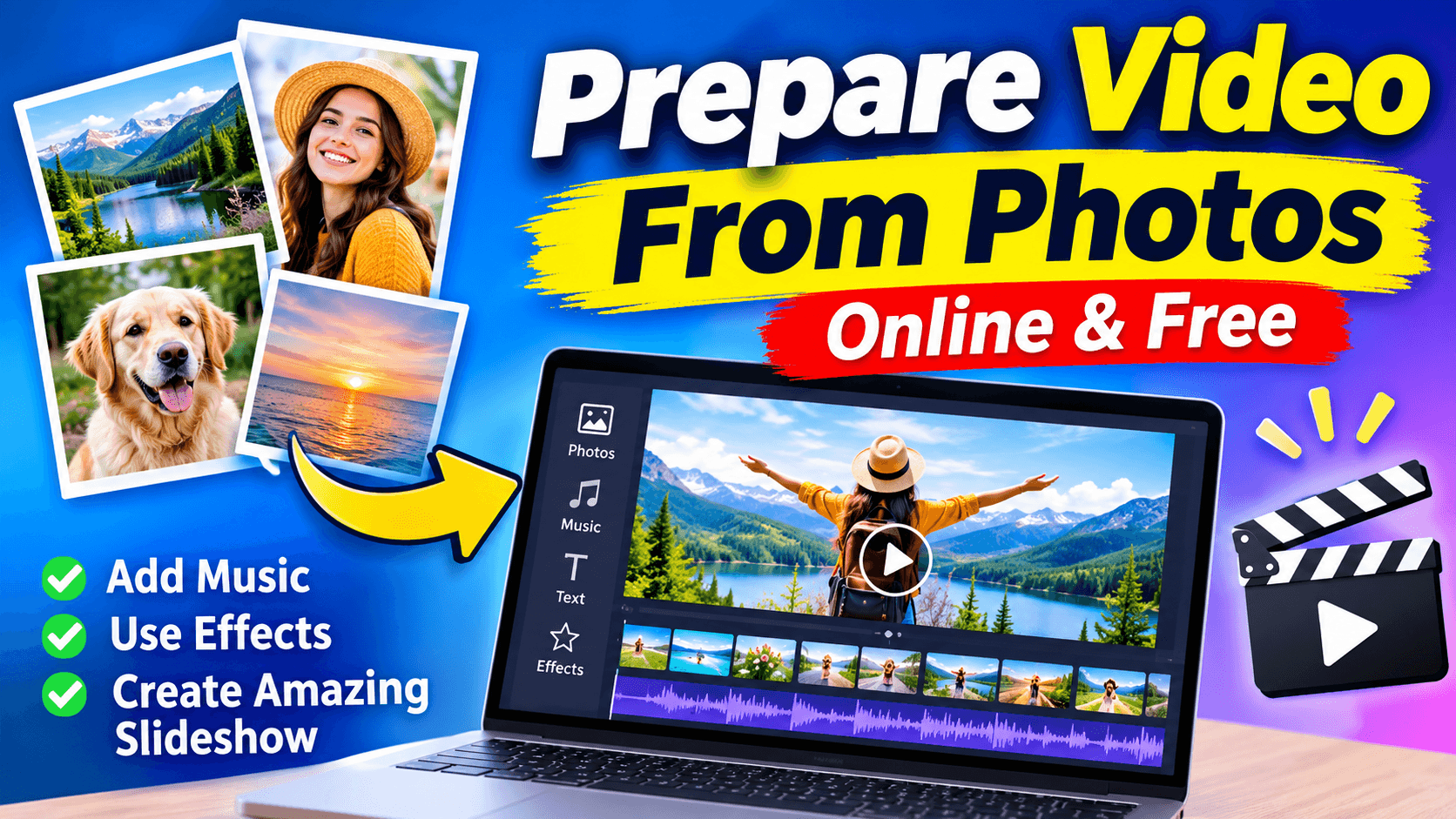
A collection of photos can tell a wonderful story, but watching them one by one is not always the best way to share those memories. Turning pictures into a video makes it easier to present special moments, explain an idea, promote a product, or create content for social media.
You do not need professional editing skills to prepare a Prepare Video From Photos Online. Online video makers allow you to upload pictures, arrange them in order, add background music, include text, and apply transitions. Some tools also offer AI features that can animate images or help create more engaging video content.
Whether you want to make a birthday slideshow, a travel video, a business presentation, or a YouTube video, you can complete the process using a browser-based editor.
This guide explains how to prepare a video from photos, which features to look for, and which online tools can help you create a polished result.
What Does It Mean to Prepare a Video From Photos?
Preparing a video from photos means combining multiple still images into one moving video file. Each picture appears for a selected amount of time, and transitions connect one image to the next.
You can improve the video by adding background music, captions, voiceovers, filters, animations, and other visual effects.
For example, if you have 20 holiday pictures, you can arrange them in the order of your trip. Add a suitable soundtrack, include short location captions, and export everything as one video.
The result is easier to watch and share than sending individual pictures.
Photo videos are useful for:
- Family memories and birthday celebrations.
- Wedding and anniversary slideshows.
- Travel and holiday highlights.
- Product presentations and advertisements.
- Educational lessons and tutorials.
- Instagram Reels, TikTok, and YouTube content.
- Business portfolios and promotional videos.
How to Prepare a Video From Photos Online
You can create a photo video using an online editor without installing complicated software. Most browser-based tools follow a similar process.
Step 1: Select Your Photos
Start by choosing the pictures you want to include. It is better to collect all your images in one folder before opening the editor.
Choose clear pictures with good lighting and suitable quality. Remove duplicates and images that do not support your story.
Try to arrange them in a logical order. For example, a birthday video could begin with older memories, move to preparation pictures, and finish with celebration moments.
Step 2: Open an Online Photo Video Maker
Choose a video editing platform that supports image uploads and timeline editing.
Some tools offer ready-made templates, while others allow you to create a video from a blank project.
After opening the editor, select the option to create a video or start a new project.
Step 3: Upload Your Pictures
Upload the selected images from your computer or phone.
Most photo video makers allow you to add several pictures to the same project. Depending on the platform, you may also be able to import images from cloud storage.
Wait until all pictures finish uploading before editing.
Step 4: Arrange Images in the Correct Order
Place your pictures in the sequence in which you want them to appear.
You can usually drag images along the editing timeline to change their position.
A good photo video should have a clear beginning, middle, and ending. Avoid placing unrelated images together because this can make the video feel confusing.
Step 5: Adjust Image Duration
The duration determines how long each photo stays on the screen.
A short video may need only two or three seconds per picture. However, images containing important details may need more viewing time.
Use consistent timing where possible, but do not force every image to stay on screen for exactly the same duration.
Step 6: Add Transitions and Effects
Transitions control how one picture changes into another.
Common options include:
- Fade: Gradually replaces one image with another.
- Slide: Moves the next picture onto the screen.
- Zoom: Creates a closer or wider view.
- Dissolve: Blends two pictures together.
- Wipe: Reveals the next image through a moving effect.
Simple transitions usually work better than applying several different effects without a clear reason.
Step 7: Add Music, Voiceovers, or Text
Sound can make a photo video more enjoyable.
You can upload your own music or choose a track from the editor's available library. Make sure you have permission to use the audio, especially if you plan to publish the video publicly.
Text is useful for adding names, dates, locations, and short explanations. Keep captions readable and avoid covering important parts of the pictures.
If you are creating a tutorial or presentation, a voiceover can explain what viewers are seeing.
Step 8: Preview and Export the Video
Before exporting, watch the complete video.
Check for incorrect image order, spelling mistakes, awkward transitions, audio problems, and unwanted empty spaces.
Select a suitable aspect ratio and resolution for your intended platform. Export the finished project as an MP4 file if that format is available.
Your photo video is now ready to save, share, or publish.
Best Online Tools to Prepare a Video From Photos
Several online platforms can help you convert pictures into videos. Each offers a different editing experience, so the right choice depends on the type of content you want to create.
1. ElevenLabs Video
Website: https://elevenlabs.io/video
ElevenLabs offers AI-powered video creation alongside its audio and voice technologies. Its video platform supports creating videos from text or images and combining generated visuals with voices, music, and sound effects.
This makes it worth considering when you want to go beyond a traditional slideshow.
For example, you could use an image as the starting point for an AI-generated video scene, then add narration or sound effects to make the result more engaging.
Useful features:
- AI video generation from text and images.
- Voice and audio tools.
- Sound effects and music features.
- Video enhancement and other creative options.
Best for: Creators interested in AI-generated video content, animated visuals, and voiceovers.
2. Canva Photo Video Maker
Website: https://www.canva.com/create/photo-videos/
Canva provides an easy way to turn pictures into slideshow videos. Its drag-and-drop editor makes it suitable for beginners who want to create attractive videos without learning advanced editing techniques.
You can begin with a ready-made template or start with a blank project. Add your pictures, customize the layout, include text, and adjust the video timeline.
Canva also offers design elements and other media resources that can help improve your project.
Useful features:
- Ready-made video templates.
- Drag-and-drop editing.
- Text and design elements.
- Timeline editing.
- MP4 video export.
Best for: Beginners, presentations, personal slideshows, and social media videos.
3. VEED Photo Video Maker
Website: https://www.veed.io/create/photo-video-maker
VEED provides a browser-based photo video maker for combining images into a single video. You can upload pictures and improve the result with transitions, text, music, and other editing features.
Its editing tools are useful when you want more control over the appearance of your video.
You can also explore its other video features, including subtitles, audio editing, and AI-powered creative tools.
Useful features:
- Photo-to-video creation.
- Text and transitions.
- Audio and music editing.
- Browser-based video editing.
- Additional video editing tools.
Best for: Social media creators, marketing videos, and users who want additional editing options.
4. Clideo Video Maker
Website: https://clideo.com/video-maker
Clideo is an online video creation platform that allows users to combine pictures, video clips, music, GIFs, and text.
It provides a simple workflow for uploading media, arranging elements on a timeline, editing the project, and exporting the final video.
You can also adjust colors, resize content, add captions, and use other basic editing options.
Useful features:
- Combine pictures and video clips.
- Add music and sound effects.
- Insert text and captions.
- Resize and crop video content.
- Browser-based editing.
Best for: Simple photo slideshows, personal projects, and basic video editing.
Comparison of Photo Video Makers
Choosing an editor becomes easier when you compare the main purpose of each platform.
Tool | Main Strength | Suitable For |
|---|---|---|
ElevenLabs | AI video and audio | AI creators |
Canva | Templates and simple design | Beginners |
VEED | Video editing features | Content creators |
Clideo | Basic media combination | Simple slideshows |
These platforms are not identical. Some focus more on traditional slideshow editing, while others offer AI video generation or broader editing features.
Check each platform's current free plan, export limits, watermark policy, and paid features before starting a large project.
Tips for Making a Better Video With Pictures
Uploading images and adding music is enough to create a basic slideshow. However, a few thoughtful editing choices can make the final result much better.
Choose Pictures That Tell a Story
Do not select images only because they look attractive. Think about how each picture contributes to the overall message.
For a travel video, you could start with the destination, show different activities, and finish with your favorite moment.
Maintain Consistent Image Quality
Mixing very clear pictures with blurry or low-resolution images can make a video look uneven.
Use the best available versions of your photographs. Crop images carefully so that important subjects remain visible.
Select the Right Video Size
Different platforms use different video dimensions.
For example:
- 16:9 works well for YouTube and desktop viewing.
- 9:16 is suitable for vertical videos and short-form content.
- 1:1 can work for square social media posts.
Choose the format before editing to reduce unnecessary cropping.
Use Background Music Carefully
Music should match the subject and mood of the video.
A calm soundtrack may suit a family slideshow, while energetic music may work better for a travel highlight video.
Keep the volume balanced, particularly when your video contains narration.
Avoid Too Many Effects
Using every available transition can make a video distracting.
Choose a small number of effects and apply them consistently. The pictures should remain the main focus.
Keep Text Short and Readable
Long paragraphs are difficult to read while a video is playing.
Use short captions, clear fonts, and enough contrast between the text and background.
Common Mistakes to Avoid When Creating Photo Videos
Even simple photo editing projects can have problems that affect the final result.
Using too many pictures: A large collection of unrelated images can make the video unnecessarily long. Select pictures that support the main idea.
Ignoring image orientation: Horizontal and vertical pictures may appear differently in the same project. Check the crop and positioning of every image.
Choosing unsuitable music: Music that does not match the subject can change the entire mood of the video.
Making transitions too fast: Viewers need enough time to understand each picture. Adjust the duration according to the content.
Forgetting the ending: Finish with a meaningful final image, a short message, or a suitable closing screen.
Exporting without checking: Always preview the complete project before saving or publishing it.
Can You Prepare a Video From Photos Using AI?
Yes. AI-powered video tools provide additional ways to work with pictures.
Traditional slideshow editors display images with transitions and music. AI video tools can take the process further by generating movement, creating visual scenes, or adding voice-based elements.
For example, an AI image-to-video feature may turn a still photograph into a short moving scene. Depending on the tool, you may be able to describe the movement you want through a text prompt.
AI features can be useful for creative projects, promotional content, and storytelling. However, results vary between platforms, and generated movement may sometimes look unnatural.
If your goal is simply to combine family photographs into a slideshow, a regular photo video maker may be enough. If you want pictures to appear animated, consider an AI-powered option.
Frequently Asked Questions
1. How can I prepare a video from photos for free?
You can use an online photo video maker such as Canva or Clideo. Upload your pictures, arrange them, add music and transitions, and export the project. Check the current free plan for any limitations.
2. Can I make a video from pictures without downloading software?
Yes. Browser-based tools such as Canva, VEED, and Clideo allow you to work on video projects online without installing desktop editing software.
3. What is the best format for a photo video?
MP4 is a widely supported format for sharing and publishing videos. The ideal resolution and aspect ratio depend on the platform where you plan to upload the video.
4. How many photos do I need to create a video?
There is no fixed number. A short slideshow may use 5 to 10 pictures, while a longer presentation can contain dozens. The important thing is to keep the video relevant and interesting.
5. Can I add my own music to a photo video?
Most online video editors allow you to upload audio files and add them to the editing timeline. Make sure the music is licensed for your intended use.
6. Can I prepare a video from photos on my phone?
Yes. Many online video makers work through mobile browsers, and some also provide mobile applications. You can upload pictures directly from your phone and edit them online.
7. Can AI turn a picture into a moving video?
Yes. Some AI video generators can animate still images or create short video scenes based on an uploaded picture. The available features depend on the platform.
Final Thoughts
Preparing a video from photos is a simple way to turn ordinary pictures into something more meaningful and engaging. You can create family slideshows, travel highlights, product presentations, and social media content without professional editing experience.
Canva is a good starting point if you prefer templates and simple editing. VEED and Clideo provide useful options for combining and editing media, while ElevenLabs is worth exploring for AI-generated visuals and audio.
The best results come from choosing relevant pictures, arranging them carefully, using suitable music, and keeping the editing simple. Start with a small project, experiment with the available features, and create a video that communicates your story clearly.